

For a seasonal App Store listing, change only the first screenshot (a holiday backdrop and one line about the offer), put the dates and prices in promotional text, and submit it at least a week before the sale: by about 20 November for Black Friday 2026. Below is what each part of the App Store and Google Play listing lets you change, the deadlines that matter this year, the in-app event image sizes, and how to make the holiday version of your first screenshot in DudeShots without redoing the set.
Change one screenshot, not ten
In App Store search results people see your icon, your name and the first two or three screenshots. The first screenshot does most of the work, so that is the one to dress for the season. The rest of the set can stay as it is: someone who opens the listing is already interested, and the screens further along are there to explain the app, not to catch the eye.
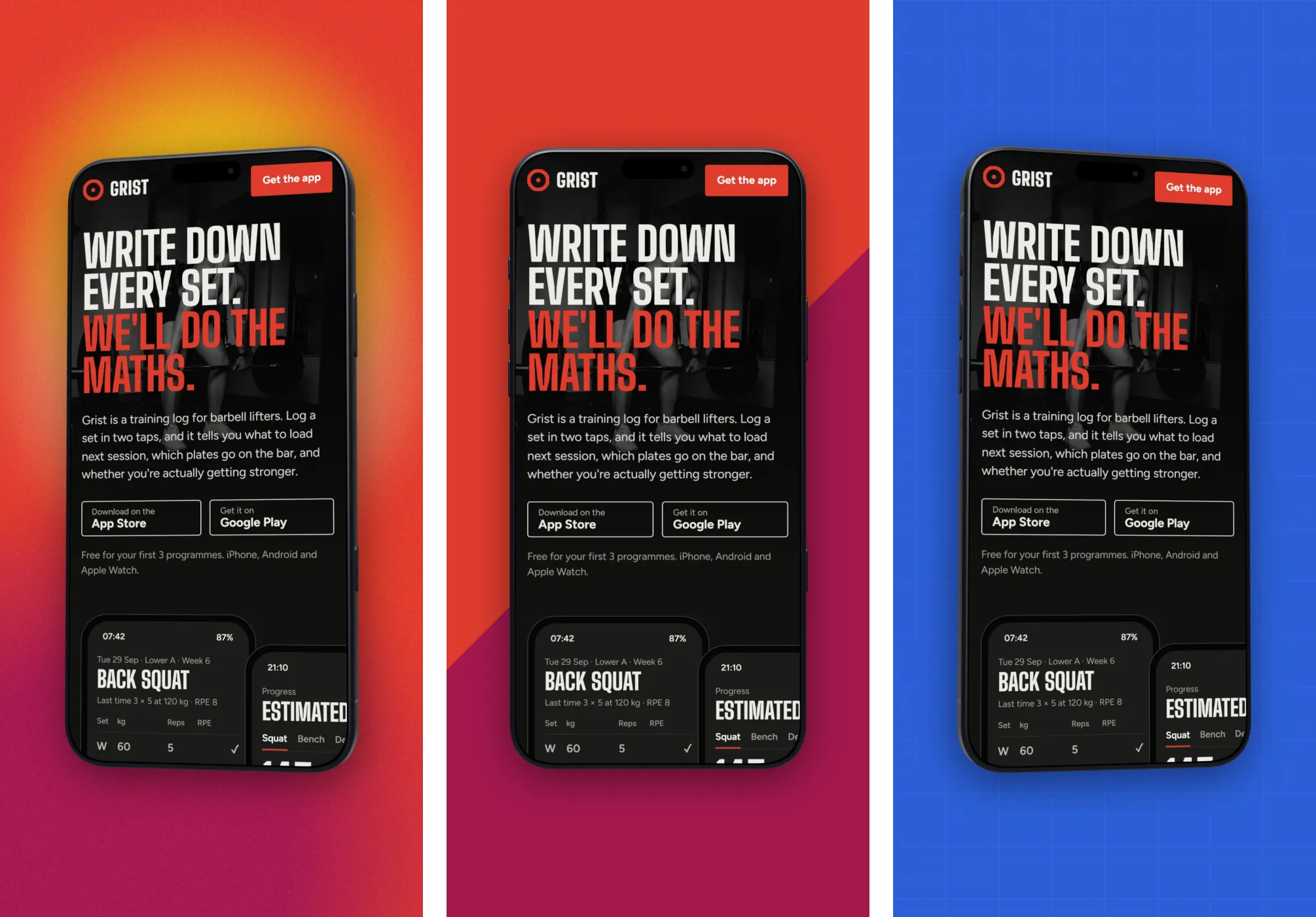
A seasonal first screenshot keeps the same screen, the same device and the same headline position as the normal one. What changes is the backdrop, a small badge or sticker, and sometimes the headline wording. Keeping the layout means the swap back in January takes minutes, and the set still reads as one strip.
What you can change, and where
The App Store and Google Play handle listing changes differently. Some need a new app version, some need review, and one needs neither. These are the figures from Apple's App Store Connect help and developer pages:
| Where | What changes | Review |
|---|---|---|
| App Store default product page | Screenshots and app previews | Yes, with a new app version |
| App Store promotional text | Up to 170 characters above the description | None, change it any time |
| App Store custom product pages | Screenshots, previews and promotional text; up to 70 pages, each with its own link | Yes, but no app update needed |
| App Store product page optimisation | Up to 3 versions of icon, screenshots and previews tested against the original, for up to 90 days | Yes, no app update needed unless you test icons |
| App Store in-app events | A card in search and on your page, plus a details page | Yes, no app update needed |
| Google Play store listing | Screenshots, feature graphic, short and full description | Yes, no new release needed |
If you are shipping an update before the holidays anyway, put the seasonal screenshot in that version. If not, a custom product page is the cleaner route on iOS: build a holiday page, send your Black Friday ads and emails to its link, and leave the default page alone. The sizes are the same as for any App Store screenshot; our App Store and Google Play screenshot sizes guide lists them.
The deadlines for 2026
- Black Friday is Friday 27 November, Cyber Monday is 30 November. Submit by about 20 November so a slow review or a rejection still leaves time to fix it.
- In-app events can be promoted up to 14 days before they start, so a Black Friday event can appear on the App Store from 13 November. An event can run for up to 31 days.
- Christmas and New Year: App Store Connect stays open over the holidays, but in past years Apple has warned that reviews take longer from around 20 to 26 December. Submit Christmas changes in the first week of December.
- January: put the normal first screenshot back. A Christmas badge still showing in the second week of January makes the app look abandoned.
What a holiday screenshot should say
One idea, as on every screenshot. For a sale, that is the offer in a few words (“Half price this week”, “A year of Pro, gift it”). For an app that simply fits the season, it is the use (“Plan every Christmas dinner”, “Track the holiday budget”). Our App Store screenshot captions guide has the rules for short lines that read at thumbnail size.
- Keep prices out of the picture. A screenshot can stay up for days after the sale ends. Put the price in promotional text instead, which you can change the moment it is over. Apple says in-app event metadata with specific prices will be rejected.
- Show the real app. Apple's guidelines ask that screenshots show the app in use. A festive backdrop around a real screen is fine; a full-screen greeting card is not.
- Season, not costume. Snow, frost or a deep winter colour says December without hiding the screen. Tinsel all over the device says nothing about the app.
- Mind other countries. Black Friday means little in some markets and Christmas means nothing in others. Make the seasonal set for the localisations where it fits and leave the rest.
How to make the holiday screenshot in DudeShots
- Open your normal first screen. If you saved it as a preset, load it from Presets. If not, open the studio, set Size to App Stores, iPhone 6.7" (1290 × 2796), drop in the screenshot and pick the same phone. The how to make App Store screenshots guide covers the full setup.
- Change the backdrop colours. In Backdrop, keep the style and switch the colours: a deep red and green, a dark winter blue, or black and gold for Black Friday. Keeping the style means the holiday screen still looks like it belongs to the set.
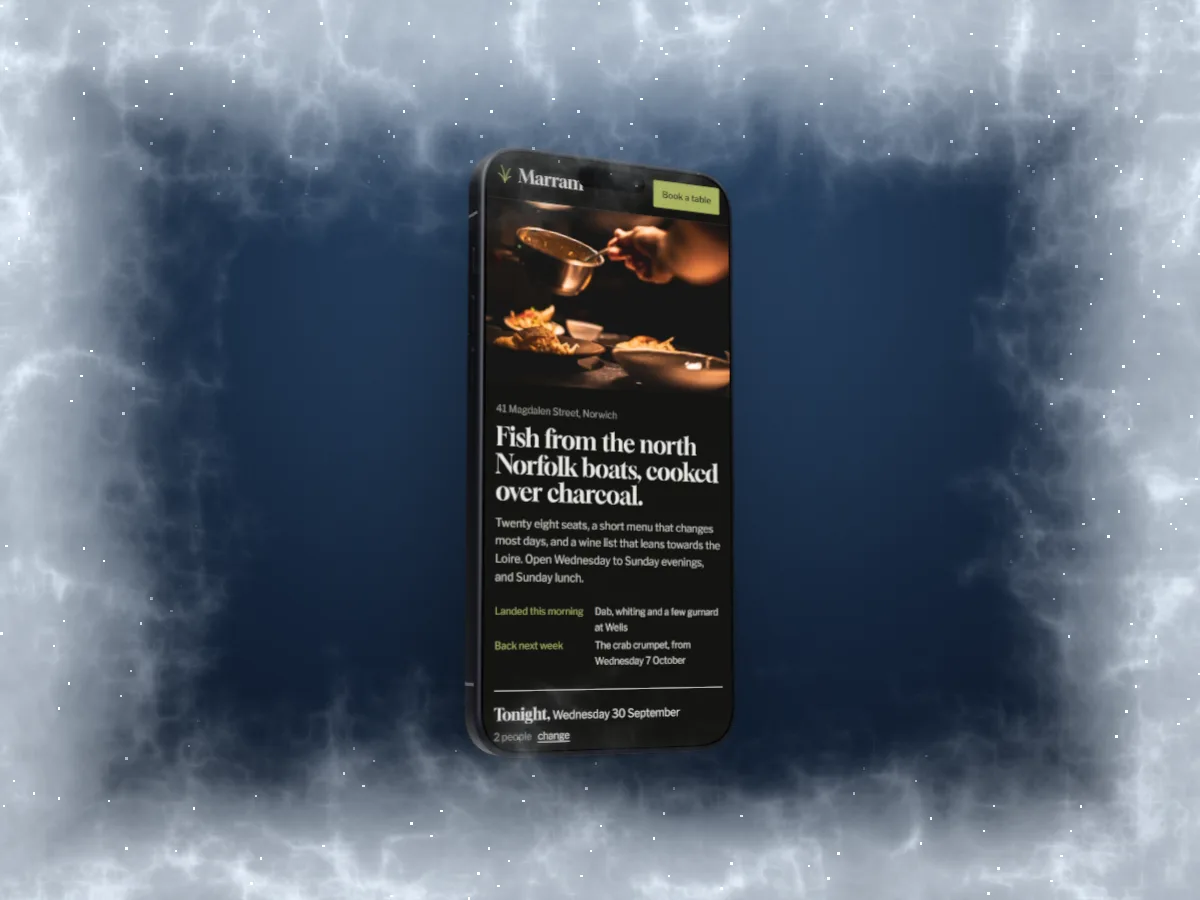
- Add the season on top. Surface puts weather over the finished picture. Snow settles along the top of the device with flakes falling, and Frost creeps in from the edges. Both leave the middle of the screen clear. Surface is Pro.
- Add the offer. In Callouts, a Tape sticker (free) or a round Badge (Pro) holds two or three words, such as “Black Friday”. A Big number (Pro) suits a single figure like “50%”, if you will be there to swap the screenshot when the sale ends.
- Export. JPEG at 1×, so the file is exactly 1290 × 2796 with no alpha channel. Then save it as a new preset called “Holiday”, so next year starts here.
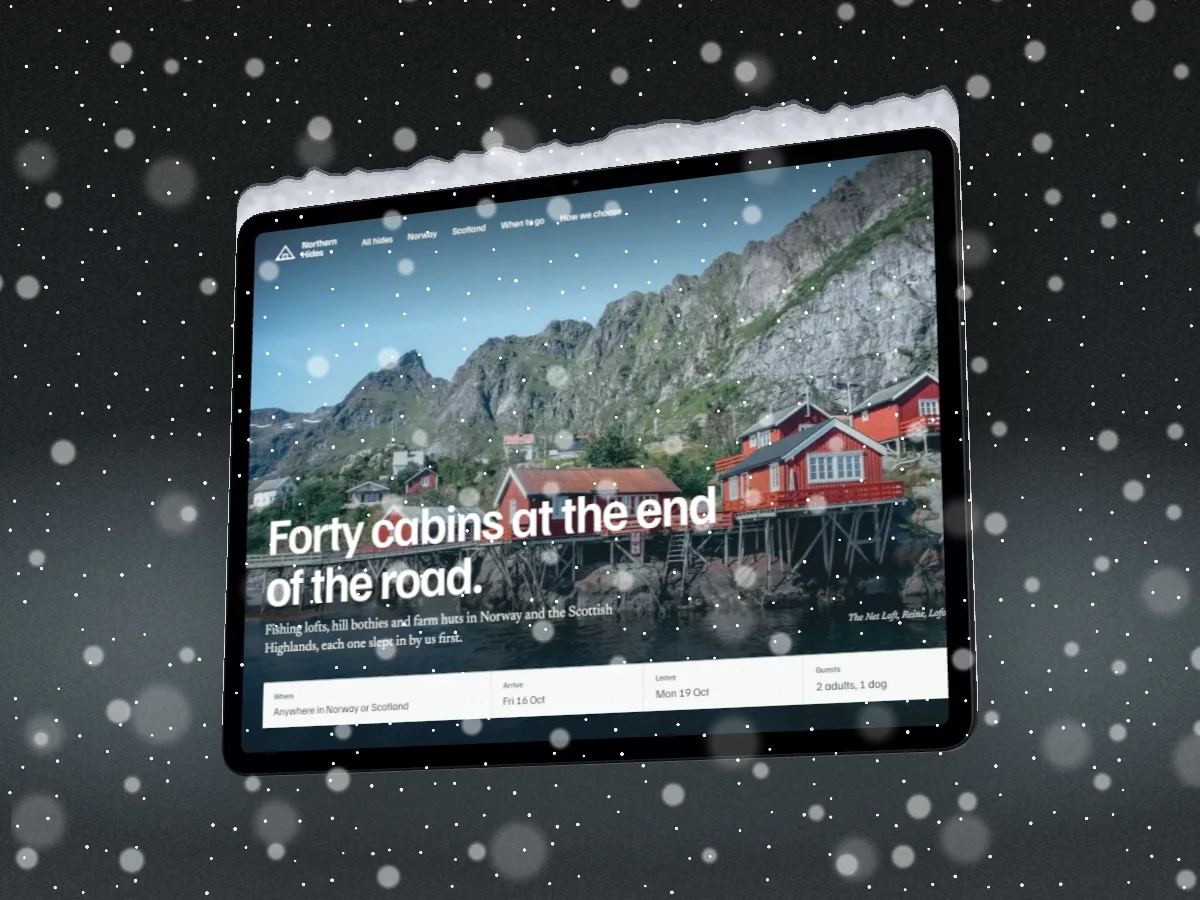
The 3D phones, Surface, the Liquid backdrops and the Badge and Big number callouts are Pro (£5 a month or £45 a year). A new account gets a free Pro week, which is enough to make a holiday screenshot and its event images in one sitting. The flat frames, the Headline and Tape sticker callouts, colours taken from your screenshot and JPEG export are free, with no watermark.
In-app event images
An in-app event puts a card in App Store search, on your product page and sometimes on the Today tab, which a screenshot alone never does. It suits a real time-limited thing in the app: a holiday challenge, a new season of content, a live event. Apple's specs:
| Asset | Shape | Size (px) |
|---|---|---|
| Event card image | 16:9 landscape | 1920 × 1080 to 3840 × 2160 |
| Event details page image | 9:16 portrait | 1080 × 1920 to 2160 × 3840 |
| Event card or details video | Same shapes, 30 or 60 fps | Same sizes, .mov, .m4v or .mp4 |
Both images take JPEG or PNG. The event name is up to 30 characters, the short description on the card up to 50 and the long description up to 120. Apple lays the name and description over the image, so keep the lower part of the card plain and put the device in the upper half or to one side.
In DudeShots, the card is the Hero Banner size (1920 × 1080) under Web & Marketing, and the details page is the Android Phone size (1080 × 1920) under App Stores: the same pixels Apple asks for. Load the Holiday preset, change the Size, and the device and backdrop place themselves again.
Google Play
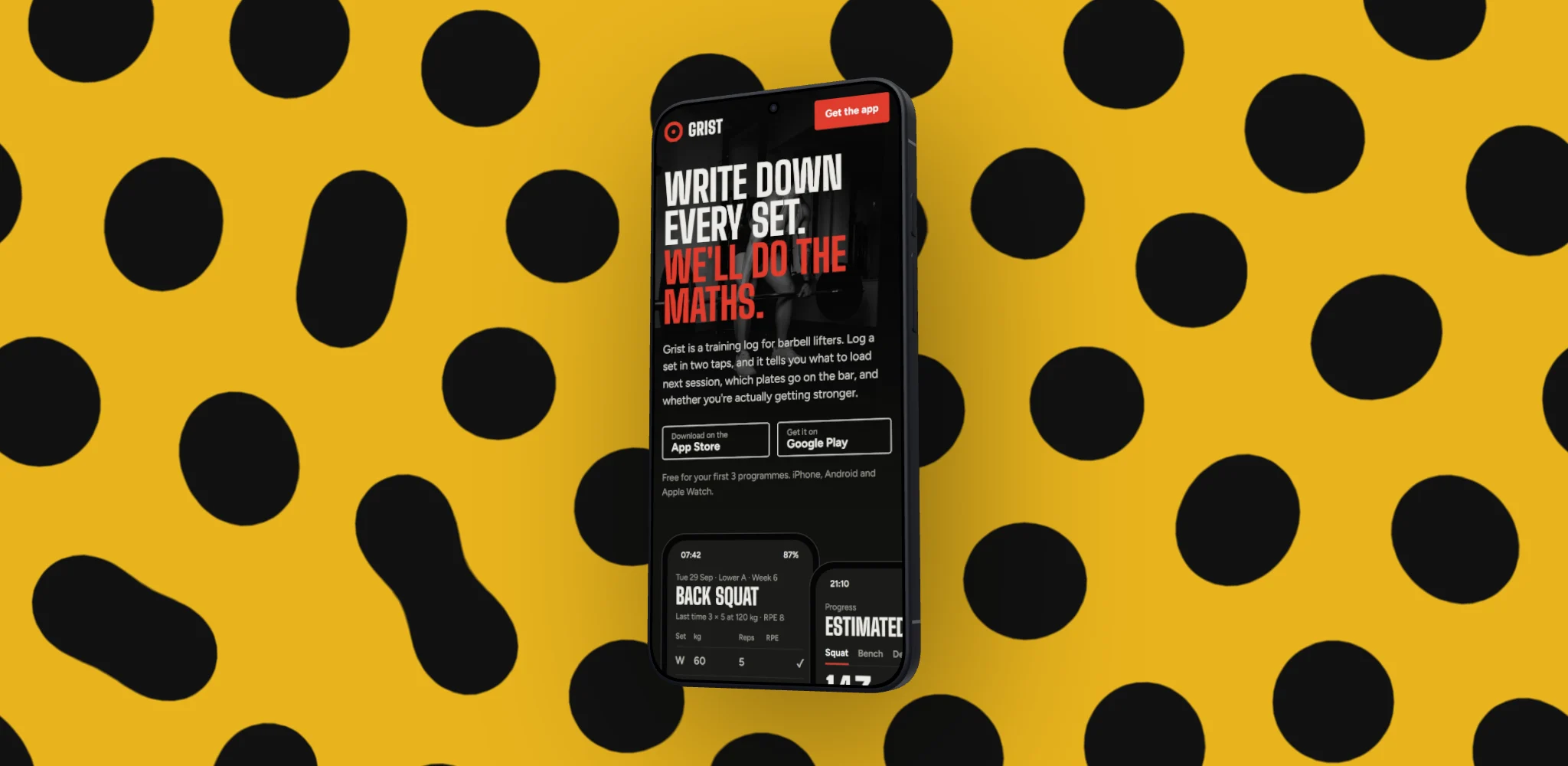
On Play you can change the store listing's graphics without a new release; the change goes through review like any listing edit, and managed publishing lets you hold an approved change and publish it on the day you choose. The feature graphic is the biggest seasonal win there: the 1024 × 500 banner at the top of the listing. Our Google Play feature graphic guide has the rules. For the phone screenshots, set Size to Android Phone (1080 × 1920), switch to a Galaxy or Pixel and export the holiday screen again.
Put it back afterwards
Write the date you will undo each change in the calendar the day you make it: promotional text the evening the sale ends, the in-app event when it closes (it ends by itself), the screenshot with your first update in January. If you send a holiday newsletter too, the same setup at 600 × 400 makes its banner; the email newsletter image size guide covers that. The App Store screenshot generator opens the studio with a phone ready.
Sources: Apple App Store Connect help (in-app event media specifications, platform version information) and Apple developer pages on in-app events, custom product pages and product page optimisation. Holiday review timing from Apple's notices in past years, as reported at the time. Checked November 2026.