

The Google Play feature graphic is 1024 × 500 px, a JPEG or a 24-bit PNG with no transparency, and it is required. It's the wide banner Google uses on your store listing, as the cover of your promo video if you add one, and in promotional spots around the store. Here's what the rules actually say, what gets cropped, and two layouts that work.
The spec
| Asset | Size | Format |
|---|---|---|
| Feature graphic (required) | 1024 × 500 | JPEG or 24-bit PNG, no alpha |
| App icon (required) | 512 × 512 | 32-bit PNG with alpha, up to 1024 KB |
| Phone screenshots | 320 to 3840 px a side | JPEG or 24-bit PNG, 16:9 or 9:16 |
The feature graphic has to be exactly 1024 × 500. Not 2048 × 1000, not 1024 × 512. For screenshots, Google recommends at least four at 1080 px or more if you want to be eligible for its bigger store placements; the details are in our App Store and Google Play screenshot sizes guide.
Where it shows, and what gets cut
Google doesn't show the feature graphic the same way everywhere. It can be scaled down, cropped at the sides, or have a play button or text laid over it. Its own advice is to keep the main visual and the focal point towards the centre and to avoid pure white or dark grey backgrounds, which disappear against the store's own colours.
- Keep the important part in the middle. Roughly the middle two thirds is safe.
- Nothing important in the corners. That's where overlays and crops land.
- Big type or none. If a line can't be read at half size, drop it.
- Pick a colour, not white or grey. Your brand colour is the easy answer.
Two layouts that work
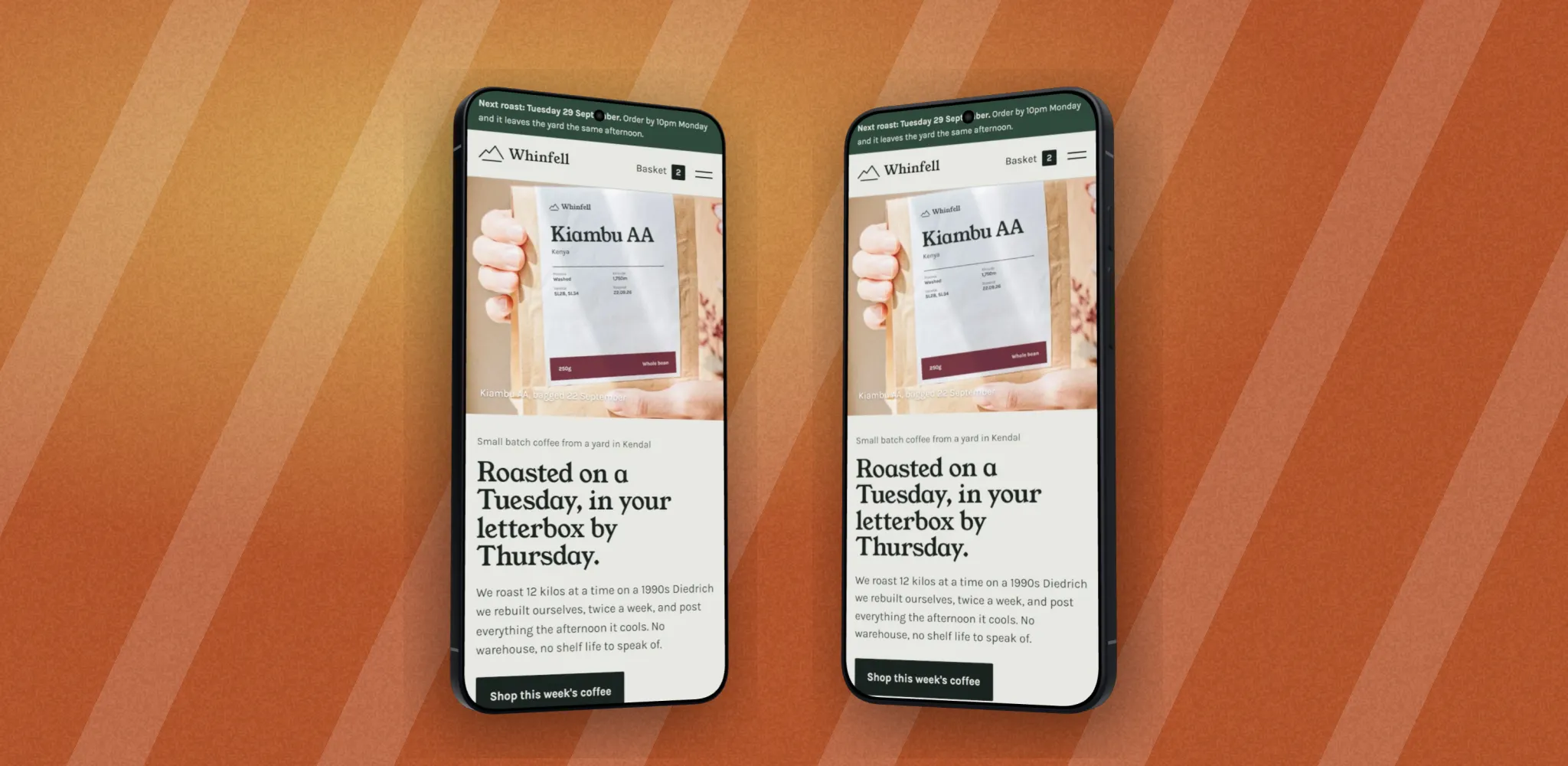
The app on two phones, centred
Two phones side by side in the middle, turned slightly towards each other, on a backdrop in your brand colour. It says "this is an Android app" at a glance and leaves the sides free to be cropped.
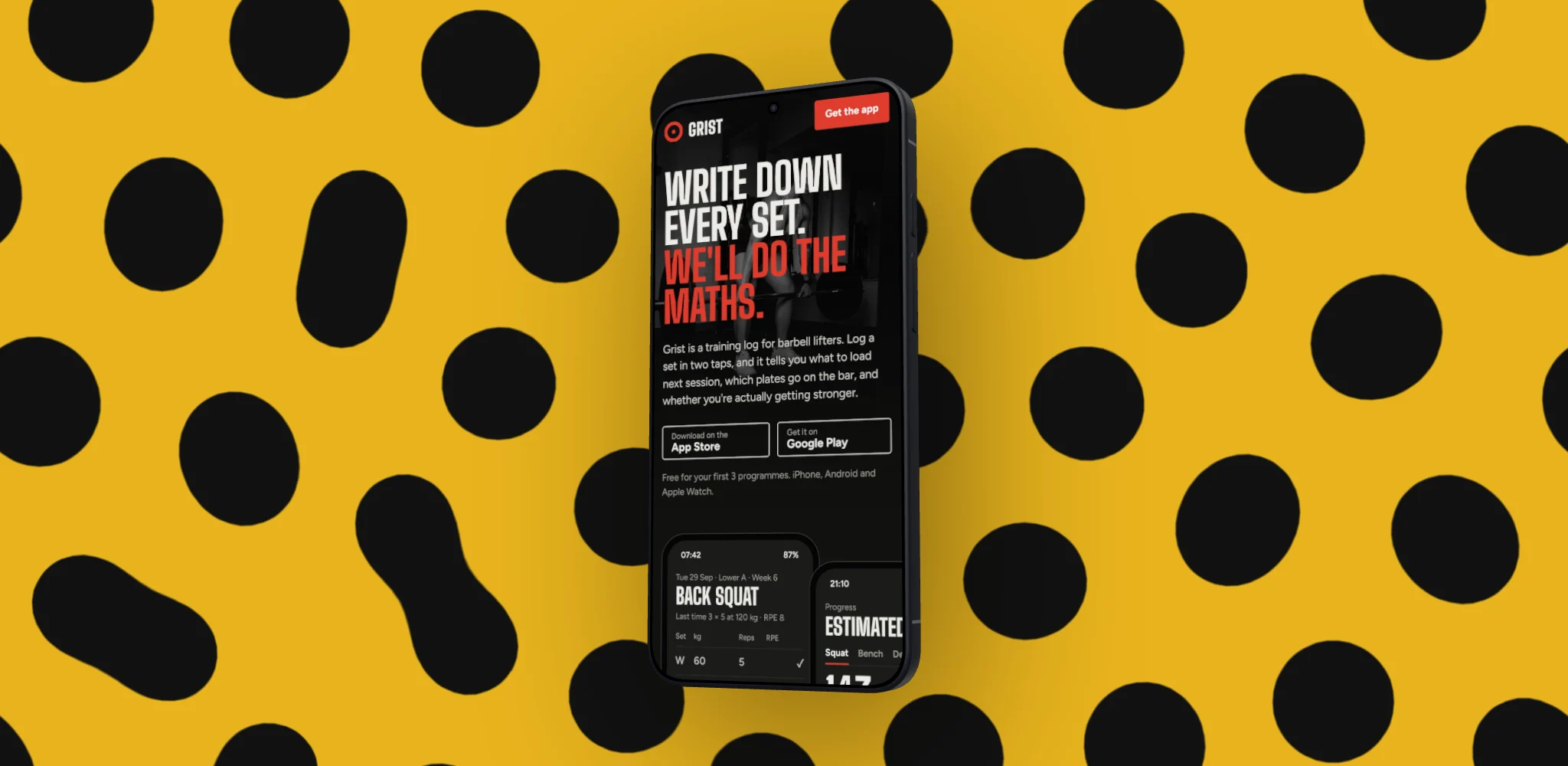
One phone, one bold pattern
One phone, turned a little, on a loud pattern. It works when your first screen is strong enough to carry the banner on its own.
How to make one in DudeShots
- Size. In the studio, go to Size, then App Stores, and pick Play Feature Graphic (1024 × 500).
- Shot. Drop in a screenshot of your app's best screen.
- Device. Pick a phone: Galaxy S26 Ultra, Galaxy S26 or Pixel 11 look right on the Play Store. Flat phones are free; 3D phones are Pro, and Free can try them with a preview tape.
- Layout. For two phones, go to On the canvas, then Add a device, and pick Phone. Arrange them with Row or Turned in. Several devices is Pro.
- Backdrop. Use your brand colour. Light and mesh styles are free; the Liquid patterns such as Spots are Pro.
- Callouts. If you want a line of text, add a Headline and keep it in the middle.
- Export. Choose JPEG at 1×. That gives you exactly 1024 × 500 with no alpha channel, which is what Play Console wants.
You can make the phone screenshots for the listing in the same session: switch Size to Android Phone (1080 × 1920) and keep the backdrop, so the banner and the screenshots match. The App Store screenshot generator page shows that set.
What gets feature graphics rejected
- The wrong size, even by a pixel.
- A PNG with transparency.
- Claims about rank, price or awards, such as "#1" or "free today".
- Showing a device or content that isn't really your app.
Sources: Play Console Help, "Add preview assets to showcase your app" (feature graphic, icon and screenshot specs), checked September 2026.