

A good App Store screenshot caption is one short line, about six words, that names the benefit the screen under it shows. Put it above the phone, in the same place and size on every screen, and start with a verb or an outcome rather than a feature name. Below are the rules that hold up, twenty example captions grouped by app type, and how to add captions to your screenshots in DudeShots for free.
Why the caption matters more than the screenshot
On the App Store, up to three screenshots appear in search results next to your icon (fewer if you have an app preview video). They show at a fraction of their real size, so the detail inside the app is often too small to make out. The caption is the part people can actually read while they scroll, which makes it the line that decides whether they tap through.
That changes how you write it. A caption is not a label for the screen ("Dashboard"), and it is not your tagline repeated five times. It is a reason to install, one per screen, written so it still works when someone reads only the first screen and moves on.
The rules for writing captions
- One benefit per screen. If a caption needs "and", it is two screens.
- About six words. Long enough to say something, short enough to read at thumbnail size. Put any detail in a smaller second line.
- Start with a verb or a result. "Split the bill in one tap" tells people what they get. "Bill splitting" only tells them what it is called.
- Match the screen under it. The caption explains what the picture shows. A caption about sync over a screen of settings confuses people.
- Use the shopper’s words. Write "Track your spending", not "Expense categorisation engine". Read your reviews: the phrases customers use are often the best captions.
- Make screen one the pitch. It is the screen most people see. Say what the app is for, not what it is called, since the name is already next to the icon.
- Keep claims you can prove. "4.8 stars from 12,000 reviews" is fine if it is true today. Vague superlatives read as filler, and Google asks you to avoid them.
20 App Store screenshot caption examples
These are written for made-up apps, to show the pattern. Each one is a benefit, under seven words, and would sit above a screen that shows exactly that.
Fitness and health
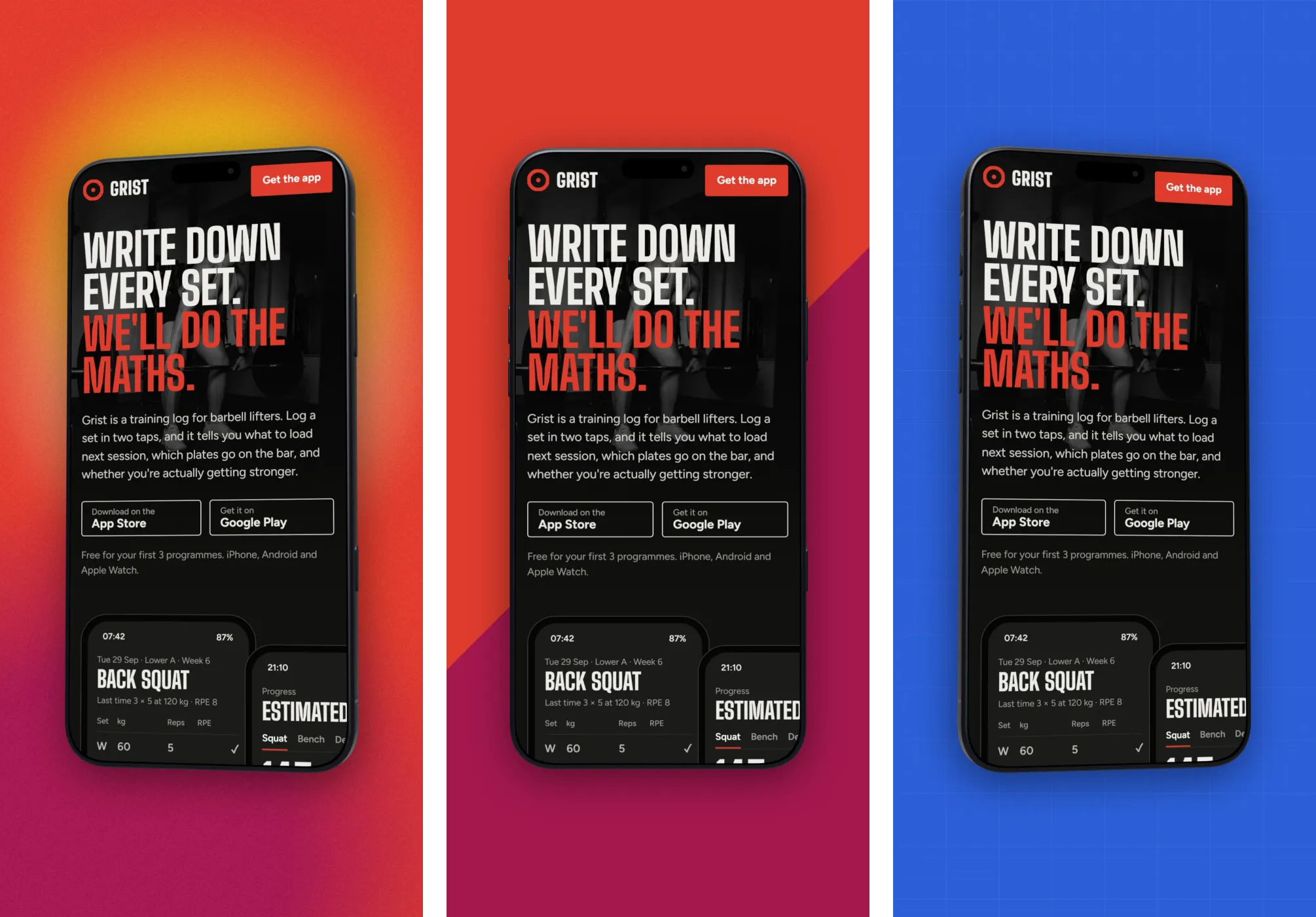
- Log a set in two taps
- Know what to lift next session
- See your strength go up, week by week
- Sleep better in seven nights
Money and finance
- Every account in one place
- Know where your money went
- Split the bill in one tap
- Get paid faster with smart invoices
Productivity and work
- Plan your whole week in a minute
- Turn notes into tasks
- Works offline, syncs when you’re back
- Share a project with one link
Food, shopping and local
- Plan a week of meals in a minute
- Your shopping list, sorted by aisle
- Order ahead, skip the queue
- Track your parcel to the door
Learning, travel and social
- Ten minutes a day to fluent
- Your whole trip, even offline
- Photos your friends will actually see
- Chat that disappears when you want it to
Notice what they leave out: no app names, no "the best", no exclamation marks, no "download now". The verb carries the line. If you want a second line, use it for a fact that backs the first: "Log a set in two taps" over "Weights, reps and RPE, then it does the maths".
What Apple and Google allow
Apple’s App Store Review Guidelines (2.3.3) say screenshots should show the app in use, not just title art, a login page or a splash screen, and that they may include text and image overlays. So a caption above a real screen is fine. Three other rules in section 2.3 catch captions out:
- No prices or terms (2.3.7). "Only £2.99" or "Free for 30 days" belongs in the description and in-app purchase details, not on a screenshot.
- No other platforms (2.3.10). Don’t mention Android or Google Play, or show their icons, on an App Store screenshot.
- Suitable for 4+ (2.3.8). Screenshots must fit a 4+ age rating, even if the app is rated higher.
Google’s guidance for Play preview assets goes further on wording. It asks you to avoid language that suggests store performance or awards ("#1", "Best", "Top", "Million downloads"), price and promotion words ("Sale", "Discount"), calls to action ("Download now", "Try now") and time-sensitive copy. Write to Google’s stricter rules and the same captions work on both stores.
How to add captions to screenshots in DudeShots
- Set the size. Open the studio, drop in your screens, then open Size and pick iPhone 6.7" (1290 × 2796) under App Stores. The exact sizes for every slot are in our App Store and Google Play screenshot sizes guide.
- Frame the screen. In Device, pick Phone and a model, then drag the phone down so the top third of the canvas is free. Flat frames are free.
- Add a Headline. Open Callouts and click Headline. It has a big title and a smaller second line. Drag it into the space above the phone and double-click to type.
- Style it once. Pick a font (Bold, Editorial, Marker or Mono), a size (S, M or L) and a word colour; the swatches include colours taken from your screenshot. Drag the side handles to set how wide the line runs before it wraps.
- Swap screens, keep the caption. Click the next screenshot in the strip along the top. The phone, backdrop and headline stay put; only the screen changes. Retype the caption and export JPEG at 1×.
Headline, Tape sticker and Note with an arrow are all on Free, with no watermark. Pro (£5 a month or £45 a year, with a free Pro week when you make an account) adds Badge, Big number, Chat bubble, the hand-drawn Ring and Tooltip, which suit a later screen with a rating, a stat or a review quote. The whole start to finish routine, including a running order for the set, is in how to make App Store screenshots.
Check the set before you upload
- Read it at thumbnail size. Zoom the browser out until a screenshot is about 200 px tall. If you can’t read the caption, cut words or make it bigger.
- Read only the captions, in order. They should tell the story of the app on their own, like a short list of reasons to install.
- Check the position. Same height, same size, same colour on every screen, so the set scrolls as one strip.
- Check the claims. Ratings, user counts and awards must be real and current, and none of them on a Play screenshot.
The App Store screenshot generator opens the studio with a phone ready, and the iPhone mockup generator lists every model you can put the screen in.