

AppSumo listing images must be at least 1920 × 1080 pixels, JPG or PNG, and no bigger than 5 MB. Every listing needs one header image, plus up to five product images. The part that catches people out is what goes on them: AppSumo turns down headlines, stickers, banners and watermarks, so the images you made for Product Hunt or the App Store often won't pass as they are. Here are the rules, and a quick way to make a set that fits them.
The numbers
These come from AppSumo's Image Guidelines for partners:
| Rule | What AppSumo asks for |
|---|---|
| Size | At least 1920 × 1080 px |
| File size | 5 MB or less |
| Format | JPG or PNG only (no WebP, JPEG 2000, TIFF, BMP, RAW or PDF) |
| Header image | 1, required |
| Product images | Up to 5, and they want all 5 |
Make every image 1920 × 1080 exactly. It meets the minimum, it is 16:9 so nothing gets cropped oddly, and a JPEG at that size is usually well under 1 MB. If you want extra sharpness, 3840 × 2160 is fine too, as long as the file stays under 5 MB; a detailed PNG at that size can go over. AppSumo recommends lossless compression if you need to shrink a file.
What gets images sent back
AppSumo is stricter than most marketplaces about what sits on top of the picture. The guidelines rule out:
- Text over the image. Headlines, captions, messaging, emoji. Your description does that job.
- Stickers, stamps and banners. No "50% off", no "New", no ribbons across a corner.
- Watermarks and icons. Including your own logo stamped in a corner of a product image.
- Compilations. Several screens stitched into one picture. They ask for one view per image.
- Illustrations and abstract media. Stock art, drawings, or anything that isn't your product.
- Anything you don't own. Only properly licensed, original images.
If you already made a Product Hunt gallery, that is the big difference. Product Hunt images usually carry a headline on every slide; AppSumo wants the same screens without it.
The header image
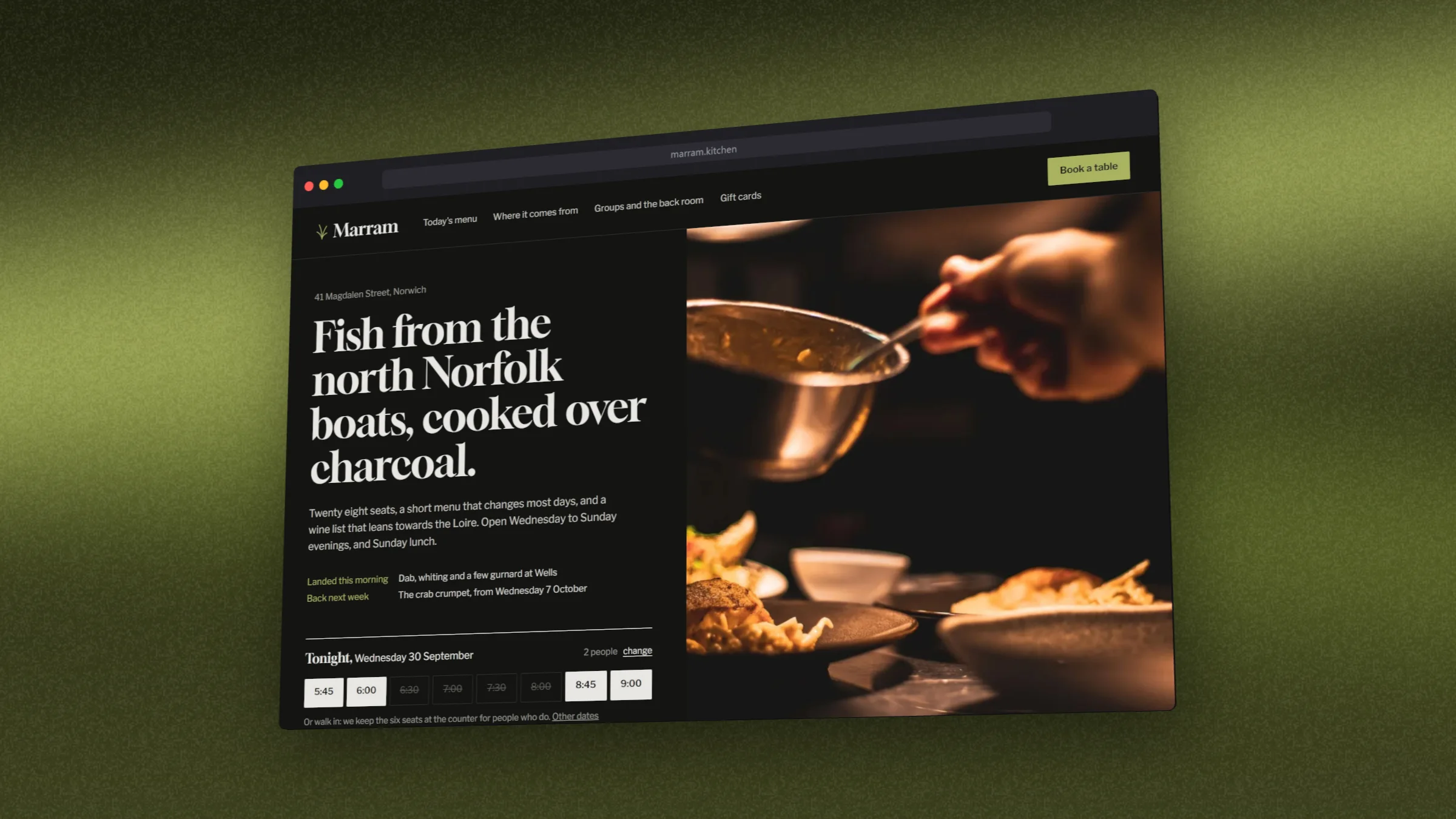
The header is the only image where your logo belongs. AppSumo asks for a logo that is clearly visible, with strong contrast against the background, and not pushed too high, too low or partly hidden. In practice: your logo on a plain or softly lit background in one of your brand colours, next to the product itself.
The five product images
AppSumo wants "high-resolution screenshots of your product in action". Pick five screens that each show one thing the product does, in the order a buyer would meet them:
- The main screen, working. The dashboard or editor with real data in it, not an empty state.
- The core job, done. The result people buy it for: a finished report, a sent campaign, a built page.
- The feature that sets it apart. The one competitors don't have.
- Setup or integrations. Deal buyers want to know it will fit what they already use.
- Mobile, settings or team view. Whatever answers the question buyers ask most.
Use believable data and hide anything private: real-looking names, no test accounts, no customer emails. Capture at a large window size so the text stays crisp when AppSumo scales the image down.
Making the set in DudeShots
Open the studio, then:
- Add your screens. Drop in screenshots, or paste your app's address in Shot and it is captured at 1440 px wide, at twice the pixels for sharpness. Viewport capture is free. See URL to screenshot for the options.
- Set the size. In Size, pick 16:9 Widescreen or Hero Banner. Both are 1920 × 1080.
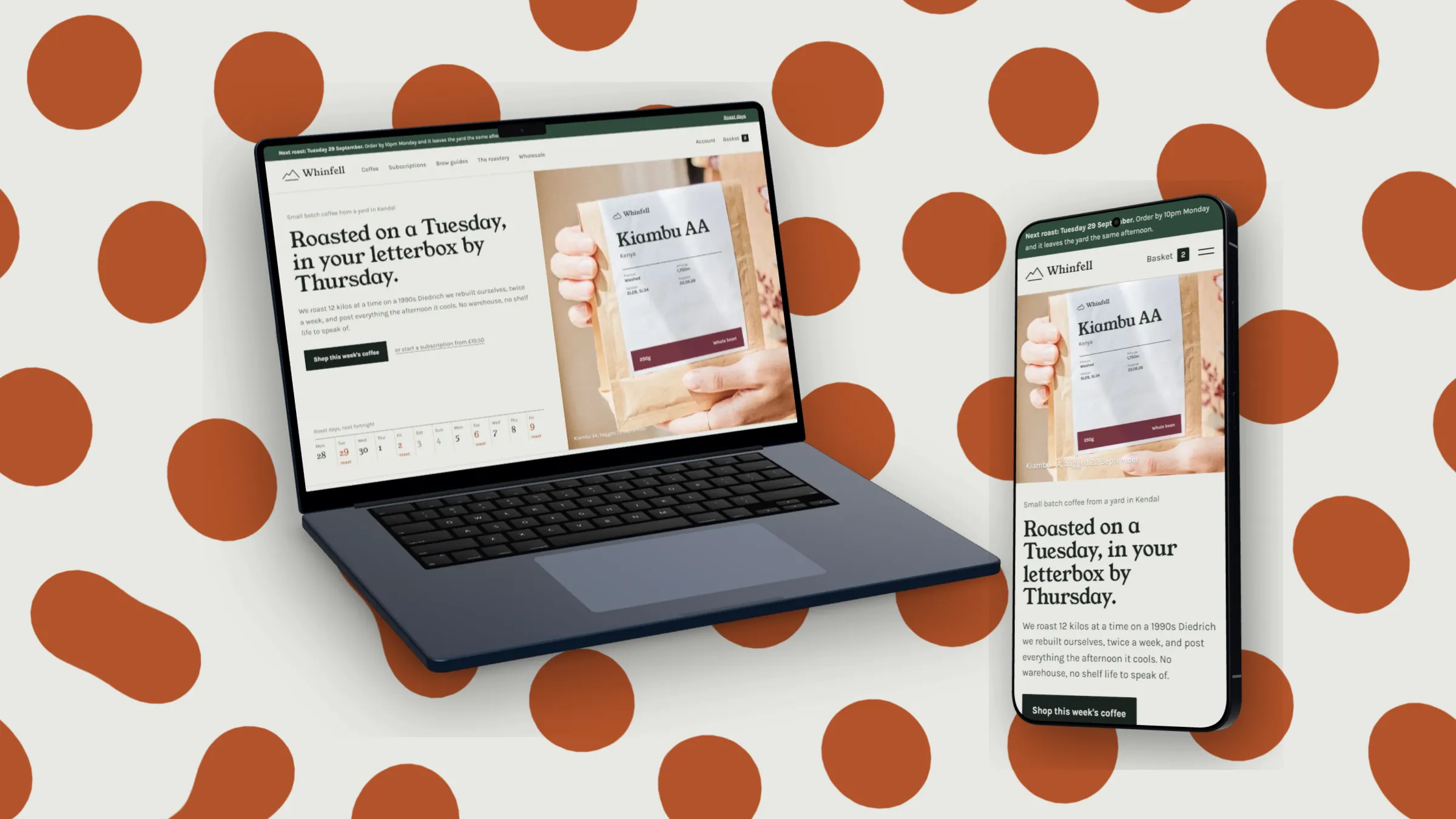
- Choose a frame, or none. A plain screenshot is the safest reading of the rules: in Device pick None, then the Plain edge. A single browser window or MacBook around the screen still shows one view and looks more finished.
- Keep the backdrop quiet. Studio light or a soft blend in your brand colour. The product is the subject; a loud pattern behind it can read as the abstract media AppSumo turns down.
- Leave callouts off, and turn the watermark off. If you pinned a default watermark, untick Show on the canvas and exports in Watermark for the product images. For the header image only, add your logo there and place it where it reads clearly.
- Export JPEG or PNG. Not WebP. At 1× the file is exactly 1920 × 1080; at 2× it is 3840 × 2160, so check the file size before you upload.
With the setup done, click the next screen in the strip along the top and export again: the frame, backdrop and angle stay the same, so the five images match. All of this is on the Free plan. 3D devices and 3× export are part of Pro (see pricing).
Before you upload
- Every file is at least 1920 × 1080 and 16:9.
- Every file is JPG or PNG, and 5 MB or less.
- No text, sticker, badge or watermark on any product image.
- One screen per image.
- The header shows your logo clearly, with strong contrast.
- Nothing private or unlicensed in any screenshot.
AppSumo updates its guidelines from time to time, so check the partner portal before you submit. The same screens, with headlines added back, also make a good landing page hero and share image for launch day.