

An iPhone 17 Pro Max (or 18 Pro Max, or 16 Pro Max) screenshot for the App Store is 1320 × 2868 pixels in portrait. App Store Connect also accepts 1290 × 2796 and 1260 × 2736 in that same slot, and the one size Apple currently requires is the medium Dynamic Island display: 1206 × 2622 or 1179 × 2556. Below is every size App Store Connect accepts, which iPhones each one covers, what is required and what is optional, and how to make a set at the right size in DudeShots.
These figures come from Apple's App Store Connect help page, Screenshot specifications, as it reads in November 2026. Apple no longer labels the slots in inches: it names them by the kind of screen (Dynamic Island, Face ID, Home Button) and its size. The inch labels below are the ones most people still search for.
Every App Store iPhone screenshot size
Each slot accepts any of the sizes listed for it, portrait or landscape. Your screenshot has to match one of them exactly: an image a few pixels off is refused at upload.
| App Store Connect slot | Portrait sizes | iPhones it covers | Status |
|---|---|---|---|
| Dynamic Island, large display (6.9") | 1320 × 2868, 1290 × 2796, 1260 × 2736 | iPhone 18 Pro Max, 17 Pro Max, 16 Pro Max, Air, 16 Plus, 15 Pro Max, 15 Plus, 14 Pro Max | Optional |
| Face ID, large display (6.5") | 1284 × 2778, 1242 × 2688 | iPhone 14 Plus, 13 Pro Max, 12 Pro Max, 11 Pro Max, 11, XS Max, XR | Required only if the 6.9" slot is empty |
| Dynamic Island, medium display (6.3") | 1206 × 2622, 1179 × 2556 | iPhone 18 Pro, 17 Pro, 17, 16 Pro, 16, 15 Pro, 15, 14 Pro | Required |
| Face ID, medium display (6.1") | 1170 × 2532, 1125 × 2436, 1080 × 2340 | iPhone 17e, 16e, 14, 13 Pro, 13, 13 mini, 12 Pro, 12, 12 mini, 11 Pro, XS, X | Optional |
| Home Button, large display (5.5") | 1242 × 2208 | iPhone 8 Plus, 7 Plus, 6S Plus, 6 Plus | Optional |
| Home Button, medium display (4.7") | 750 × 1334 | iPhone SE (2nd and 3rd generation), 8, 7, 6S, 6 | Optional |
For landscape, swap the two numbers: 2868 × 1320, 2622 × 1206 and so on. There are also slots for the 4 inch and 3.5 inch iPhones, which hardly anyone fills now, and a new slot for iPhone Duo (1398 × 2034 for the outer display, 2007 × 2853 for the inner one). Apple says Duo screenshots will be required from April 2027 for apps built with the iOS 27.1 SDK or later.
The rules for the file are the same in every slot: PNG, JPEG or JPG, no alpha channel and no transparency, at least one screenshot and up to 10 per device size.
The size each current iPhone takes
If you take screenshots on the phone itself (side button and volume up together), each model saves them at its own screen resolution. The newest ones land exactly on an accepted size, so you can upload them as they are or frame them first.
| iPhone | Screenshot size (portrait) | Slot it fits |
|---|---|---|
| iPhone 18 Pro Max, 17 Pro Max, 16 Pro Max | 1320 × 2868 | 6.9" |
| iPhone Air | 1260 × 2736 | 6.9" |
| iPhone 16 Plus, 15 Pro Max, 15 Plus, 14 Pro Max | 1290 × 2796 | 6.9" |
| iPhone 18 Pro, 17 Pro, 17, 16 Pro | 1206 × 2622 | 6.3" |
| iPhone 16, 15 Pro, 15, 14 Pro | 1179 × 2556 | 6.3" |
| iPhone 17e, 16e, 14, 13 | 1170 × 2532 | 6.1" |
The Xcode Simulator does the same: File, then Save Screen, saves the screen at the simulated device's full resolution. For a web app, Chrome DevTools' device toolbar gets you there too: set the viewport to 440 × 956 at a device pixel ratio of 3 and the capture comes out at 1320 × 2868, while 402 × 874 at 3 gives 1206 × 2622.
Which sizes to make
Apple's own advice is that if your app looks the same across sizes, you only need screenshots for the highest required resolution, and App Store Connect scales them for the smaller slots. In practice two sets cover the whole range:
- 1206 × 2622 for the medium Dynamic Island slot, because it is the required one.
- 1320 × 2868 (or 1290 × 2796) for the large slot, so the biggest phones show a sharp set and the 6.5 inch requirement falls away.
Leave the older slots empty unless your app looks different on them, for example a layout that changes on Home Button phones. Make each set from the same designs: the two sizes are close enough in shape (both about 9:19.5) that a layout moved from one to the other needs little more than a nudge.
Make them at the right size in DudeShots
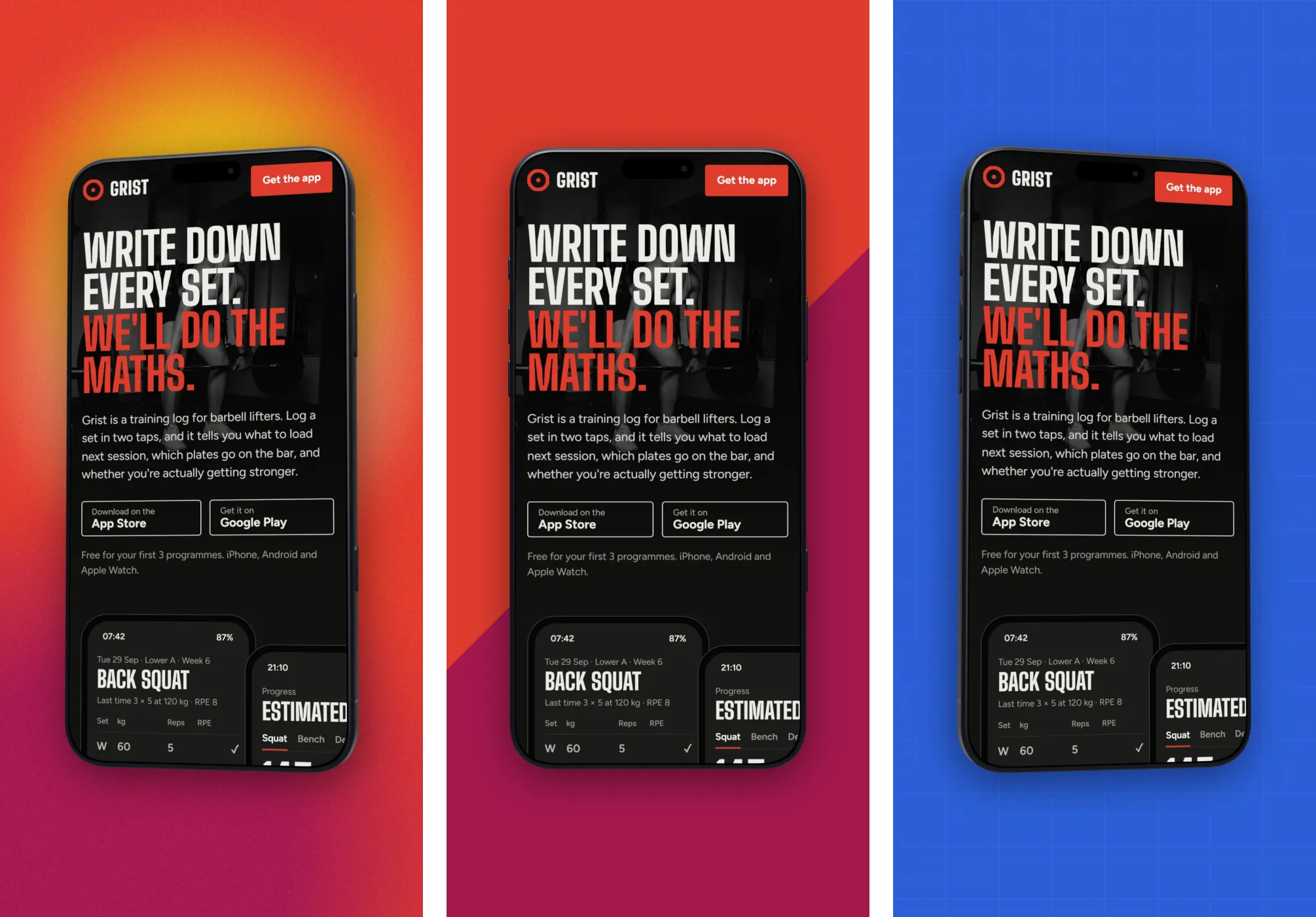
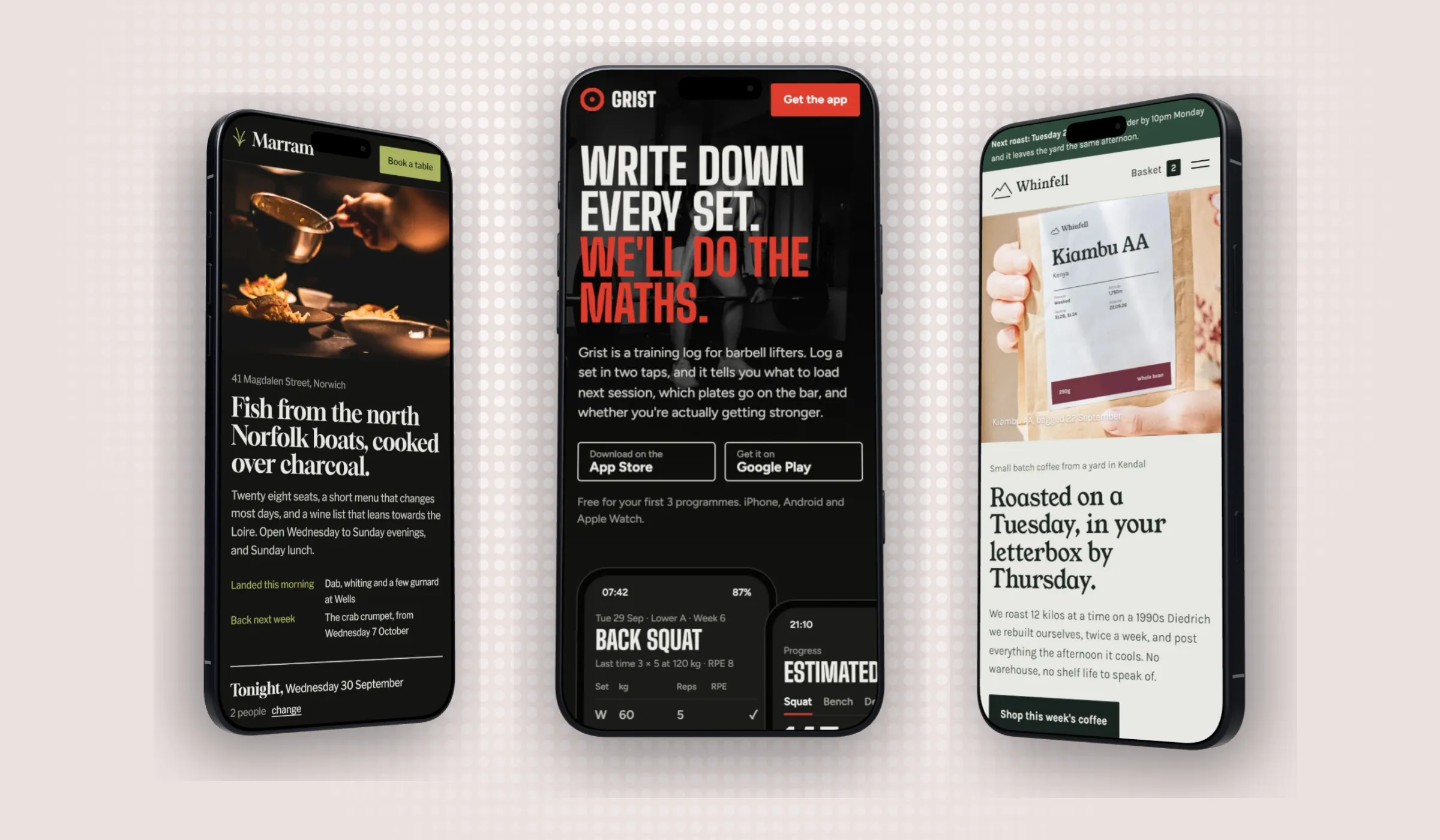
A raw screenshot fits the slot, but on its own it rarely explains the app. The usual fix is to frame each screen in a phone, put it on a backdrop, and add a short line saying what the screen does. In the App Store screenshot generator that takes a few minutes per screen:
- Open the studio and go to Size. Under App Stores, pick iPhone 6.7" (1290 × 2796, accepted in the large slot), or type 1320 × 2868 or 1206 × 2622 under Custom size. The swap button turns any size to landscape.
- Drop in your app screen under Shot. Under Device, pick an iPhone: the tiles show the size each phone's own screenshots come out at, so you can see what fits without cropping. The iPhone 18 Pro, 18 Pro Max and Air come in flat (free) or 3D (Pro).
- Pick a Backdrop. It starts from your screenshot's own colours, so the set matches the app.
- Add a headline under Callouts. Keep it to a few words; the guide to App Store screenshot captions has patterns that work.
- Export as JPEG at 1×, so the file is exactly the canvas size and has no alpha channel. A PNG keeps an alpha channel even when nothing is see-through, which App Store Connect can reject.
Then change the canvas to the second size and export the same screens again. Free exports have no watermark; the 3D phones, the Pro backdrops and some callout kinds are Pro, and a new account gets a week of Pro to try them.
Mistakes that get screenshots refused
- A few pixels off. 1320 × 2867 is refused. Resizing in a hurry or cropping out a status bar are the usual causes.
- An alpha channel. Flatten the image or export JPEG.
- The wrong slot. A 1206 × 2622 image dropped into the large slot is refused, because that slot only takes its own three sizes.
- Mixed orientations. Apple allows portrait or landscape, but a set that switches between them reads badly in search results. Pick one.
For iPad, Google Play and the rest of the store sizes, see App Store and Google Play screenshot sizes. For the whole job, from picking screens to the running order, read how to make App Store screenshots, and to frame a single screen in a phone, try the iPhone mockup generator.