

To screenshot an animated website, let the animation settle and take the picture in your own browser with your computer's or phone's screenshot keys, not with an online capture tool. Your device has a graphics card and draws the 3D scenes and motion as you see them; most capture services don't. Below: why animated and WebGL sites break screenshot tools, how to grab them on Mac, Windows, iPhone and Android, and how to turn the result into a clean mockup in DudeShots.
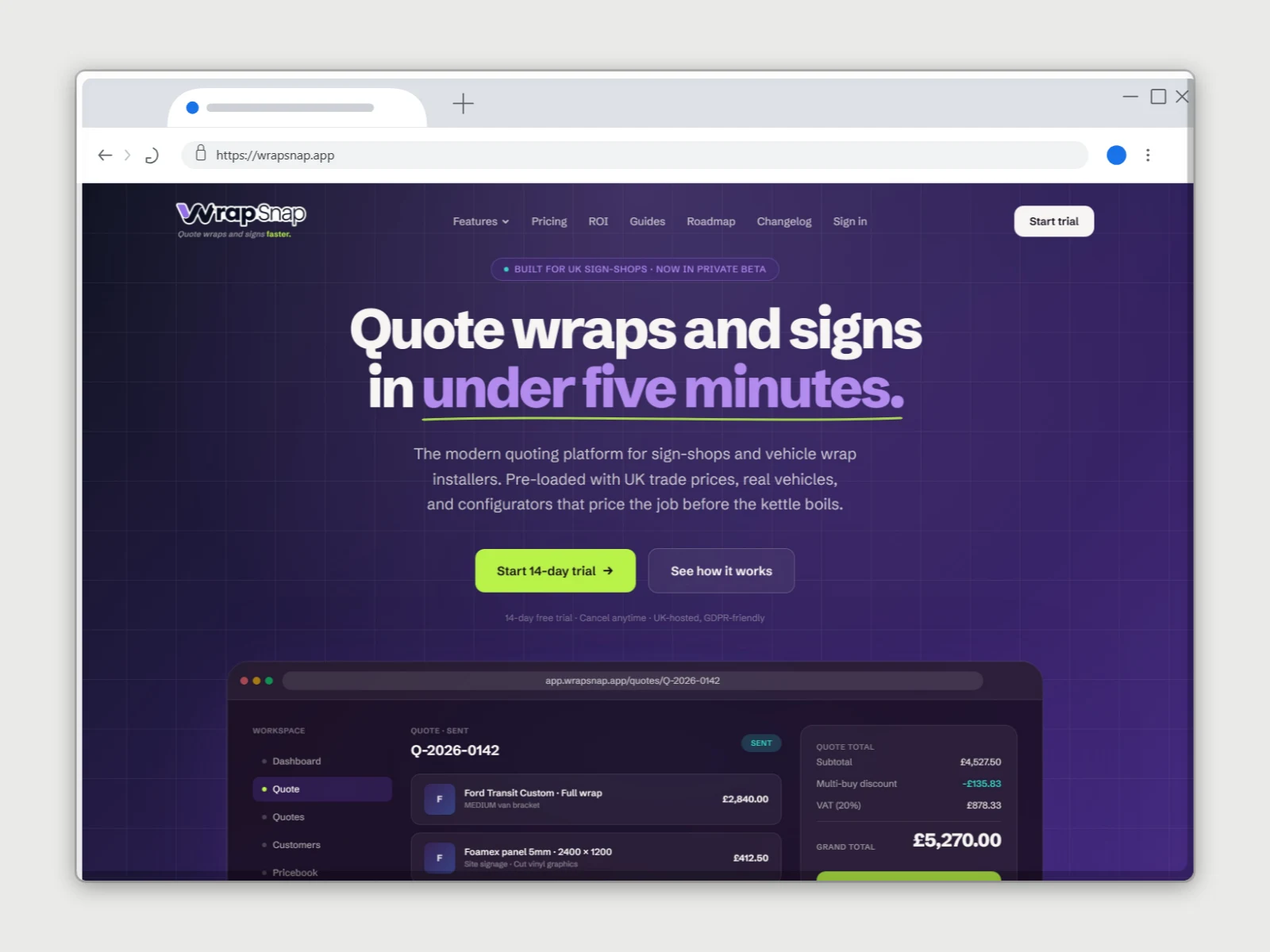
Why animated sites break screenshot tools
A screenshot tool, whether it's a browser extension, an online "URL to image" service or the full page option in a browser, has to decide when the page is finished. Static pages make that easy: the HTML loads, the images load, done. Animated pages never quite finish, and a few patterns cause most of the failures.
- 3D scenes drawn with WebGL. Sites built with three.js, Spline or similar draw on a canvas with the graphics card. Capture services run headless browsers on servers without one, so the scene is drawn in software, slowly, or not at all. The result is a blank or black box where the 3D was, or a capture that times out.
- Animations that never stop. A looping background, a video hero or a ticker keeps the page busy forever. Tools that wait for the page to go quiet wait until they give up.
- Things that appear as you scroll. Headings and images that fade or slide in when they reach the screen are invisible until then. A tool that captures the whole page in one go, without scrolling, gets empty gaps.
- Smooth-scroll scripts. Many animated sites fix the page at one screen high and move the content with transforms. Asked how tall the page is, the browser says one screen, so a "full page" screenshot comes back as just the first view.
- Intros and loaders. A logo animation that plays for three seconds is what you get if the capture fires in those three seconds.
Our own capture has the same limits, and says so. The DudeShots URL to screenshot capture freezes looping CSS animations, videos and animation loops, and strips the SVG noise filters that slow pages down, before it takes the picture. That fixes most busy sites. It runs on servers without a graphics card, though, so pages built around heavy 3D can still fail or lose their moving parts. When that happens, take the screenshot on your own device and bring it in.
Before you press the keys
A minute of preparation saves a lot of retakes.
- Wait for the page to settle. Let the intro play out, scroll down past the parts you want and back up, so every scroll animation has run once and stays shown.
- Try reduced motion. Well built animated sites honour the system's reduced motion setting and drop to a still layout. On a Mac it's System Settings, Accessibility, Display, Reduce motion; on Windows, Settings, Accessibility, Visual effects, Animation effects off; on iPhone, Settings, Accessibility, Motion, Reduce Motion; on Android, Settings, Accessibility, Remove animations (the wording varies by phone). Reload the page after changing it.
- Size the window first. For a laptop or browser mockup, a window about 1440 × 900 is a good shape. A screenshot from a 4K monitor at full width is too wide for most frames.
- Hide what you don't want. Accept or close the cookie banner, close chat bubbles, and move the mouse off anything with a hover effect.
On a Mac
Press Shift-Command-4 and drag over the part of the screen you want, or press Shift-Command-4, then Space, and click the browser window to capture just that window. Shift-Command-3 takes the whole screen. All of them save a PNG to the desktop by default.
For a page that keeps moving, press Shift-Command-5 instead. It opens the Screenshot panel, where Options has a Timer: start the timer, move the mouse away, and the capture fires once the delay runs out. The same panel can record the screen, which is the easy way to catch one exact frame of an animation: record a few seconds, open the recording, pause on the frame you like and take a screenshot of it.
On Windows
Press Windows+Shift+S to open the Snipping Tool's capture bar and choose a rectangle, a window or the full screen. The picture goes to the clipboard, so you can paste it straight into the studio. For a delay, open the Snipping Tool app itself and set the delay before you start a new snip; it also records the screen if you need one frame of a moving sequence.
In Chrome or Edge, with DevTools
Desktop browsers built on Chromium have screenshot commands of their own, and DevTools gives you control over the animation first. Press F12 to open DevTools, then Ctrl+Shift+P (Command-Shift-P on a Mac) and type "screenshot":
- Capture screenshot takes the visible part of the page.
- Capture full size screenshot takes the whole page. On smooth-scroll sites it may stop at one screen, for the reason above.
- Capture node screenshot takes just the element selected in the Elements panel, such as one hero section.
To calm the page down first, open the Rendering tab (from the same command menu, type "rendering") and set "Emulate CSS media feature prefers-reduced-motion" to reduce. That has the same effect as the system setting, for this tab only. The Animations panel can also pause CSS animations where they are. Neither stops a WebGL scene that ignores reduced motion; for those, wait for a good moment and use the operating system's keys.
Lazy-loaded images are the other common gap in full size screenshots. Scroll to the bottom of the page and back before running the command, so they have loaded.
On iPhone
Press the side button and the volume up button together (on iPhones with a Home button, the side or top button and Home). In Safari, tap the thumbnail that appears, then Full Page at the top to keep the whole page; that version saves as a PDF to Files, so for a mockup keep the normal Screen version, which is a PNG at the phone's full resolution.
Animated sites on phones often run a lighter version of their effects, and a phone's graphics chip draws WebGL as intended, so a phone screenshot is often the cleanest way to get a 3D site's mobile layout.
On Android
Press the power and volume down buttons together. On Android 12 and later, the preview offers Capture more, which scrolls and stitches a longer screenshot in apps that support it, Chrome included. Scroll animations and smooth-scroll scripts can confuse the stitching just as they confuse desktop full page tools, so check the result, and take separate screenshots per section if parts repeat or go missing.
Turn the screenshot into a mockup
A raw screenshot of an animated site still looks like a screenshot. Framing it in a device shows where it runs, and it hides the odd edge where an effect was cut off.
- Open the studio and drop the file anywhere, paste it with Ctrl+V (Command-V), or click to upload. No account is needed.
- In Device, pick Browser for a desktop capture or Phone for a mobile one. The device frame guide lists every model and covers getting the fit right.
- Pick a backdrop. "Made for your shot" builds one from the screenshot's own colours, which suits dark, glowing 3D sites well.
- Choose the canvas size and export as PNG, JPEG or WebP, at up to 2× on Free.
If you captured both the desktop and phone layouts, put them on one canvas: the responsive mockup guide shows how, and several devices on one canvas is part of Pro (£5 a month or £45 a year, with the first seven days free on a new account).
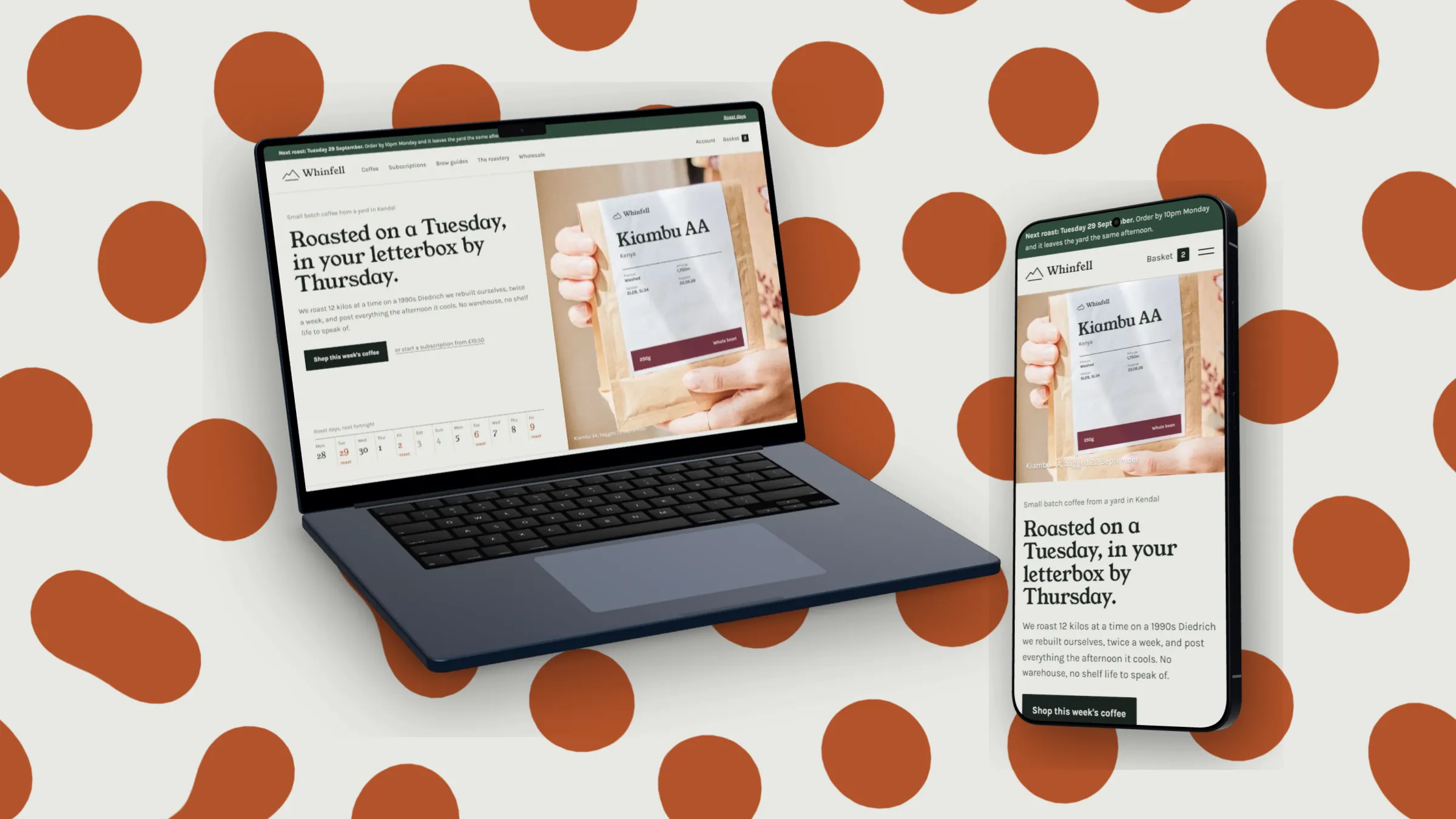
When the URL capture is still worth a try
Plenty of sites with motion capture fine from their address: a hero with a looping video, a page with fade-ins, a spinning logo. The capture is free for the visible first screen at 1440 px wide, and it can take the page at a phone screen's exact size when you add a phone, which you can't do from a laptop screenshot. Paste the address in Shot first; if the 3D part comes out empty or the capture fails, fall back to your own screenshot. Everything after that, from the frame to the browser window to the export, works the same.