

To add a device frame to a screenshot, put the image into a mockup tool, pick the device and export. In DudeShots that means dropping the screenshot into the studio, choosing a phone, laptop, tablet, monitor, watch or browser under Device, and downloading a PNG. Flat frames are free and need no account. Below: the steps, what Mac, Windows and Android Studio can do on their own, and how to stop the result looking stretched.
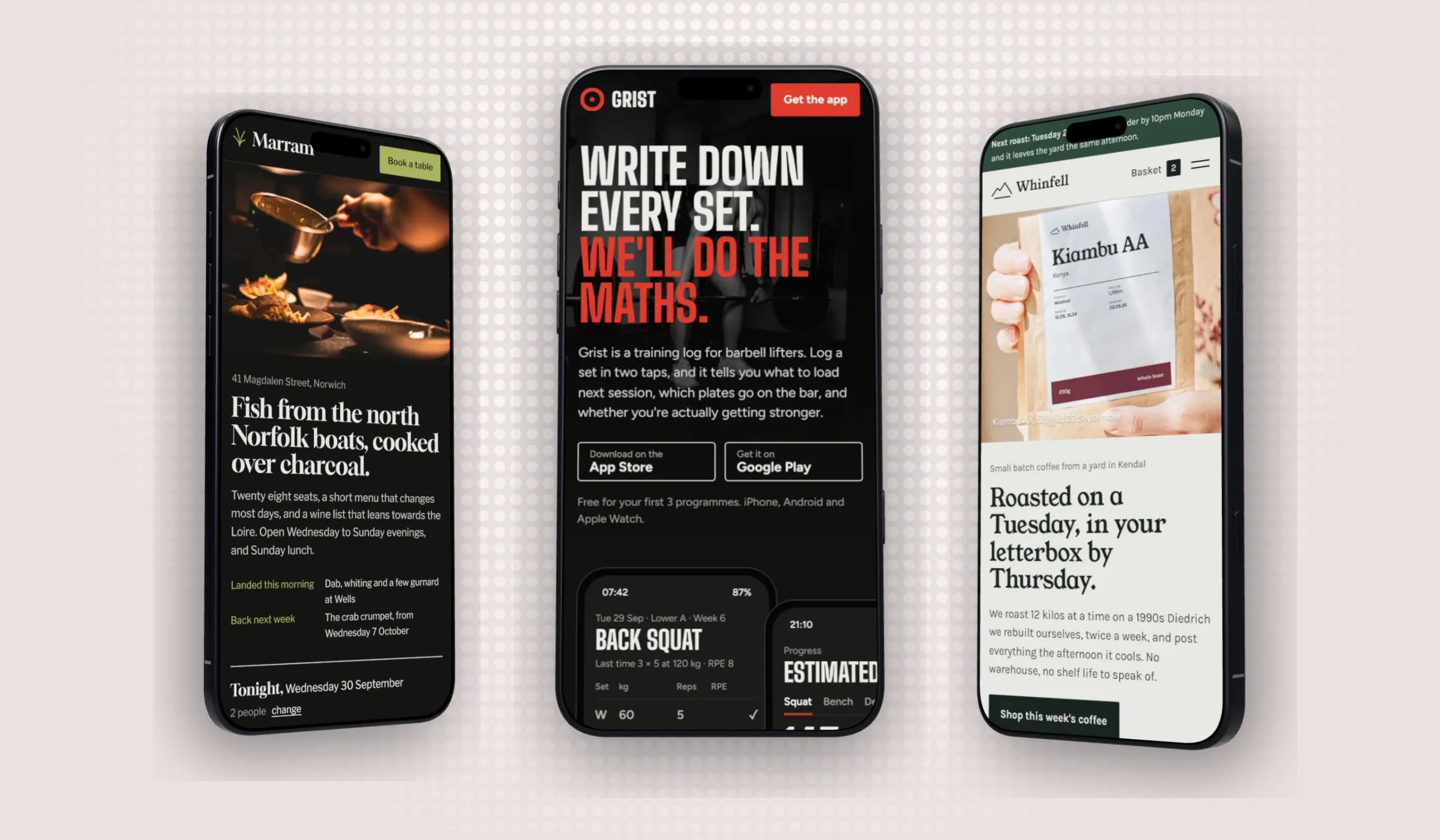
What a device frame does
A raw screenshot is a flat rectangle with no context. Put the same pixels inside a phone or a laptop and people see at once what it is and where it runs: an app on a phone, a website in a browser, a dashboard on a laptop. It is the quickest way to make a screenshot look like a product rather than a bug report, which is why landing pages, App Store sets, launch posts and case studies use them.
Step by step in DudeShots
1. Bring in the screenshot
Open the studio and drop the image anywhere on the page, paste it with Ctrl+V (Command-V on a Mac), or click to upload. Large images are scaled to a 4096 px maximum on the way in, which is plenty for any frame. If the screenshot is of a website you haven't taken yet, paste its address in Shot instead and the studio captures it for you (the visible first screen is free, see URL to screenshot).
2. Pick the device type
Open Device. Along the top are seven types: Browser, Phone, Tablet, MacBook, Monitor, Watch and None. None keeps the screenshot frameless with an edge of your choice, which suits a clean beautified screenshot.
3. Pick the model
Each type has its own models. What's in the studio today:
| Type | Models |
|---|---|
| Phone | iPhone 18 Pro, iPhone 18 Pro Max, iPhone Air, Galaxy S26 Ultra, Galaxy S26, Pixel 11; under Older phones: iPhone 15 Pro, iPhone SE, Galaxy S24, Pixel 8 |
| MacBook | MacBook Pro 14 and 16, MacBook Air 13 and 15, MacBook Neo |
| Tablet | iPad Pro 13 and 11, iPad Air 13 and 11, iPad mini, iPad, Galaxy Tab S11 Ultra, Tab S11, Tab S10 FE (portrait or landscape) |
| Monitor | Studio Display, Studio Display XDR, Dell UltraSharp 27 4K and 34 Curved, LG UltraFine 6K 32 and UltraGear 45, Samsung ViewFinity S9 5K and Odyssey OLED G9 (with or without the stand) |
| Watch | Apple Watch Series 12 and Ultra 4, Galaxy Watch 9 and Watch Ultra 2, Pixel Watch 5 |
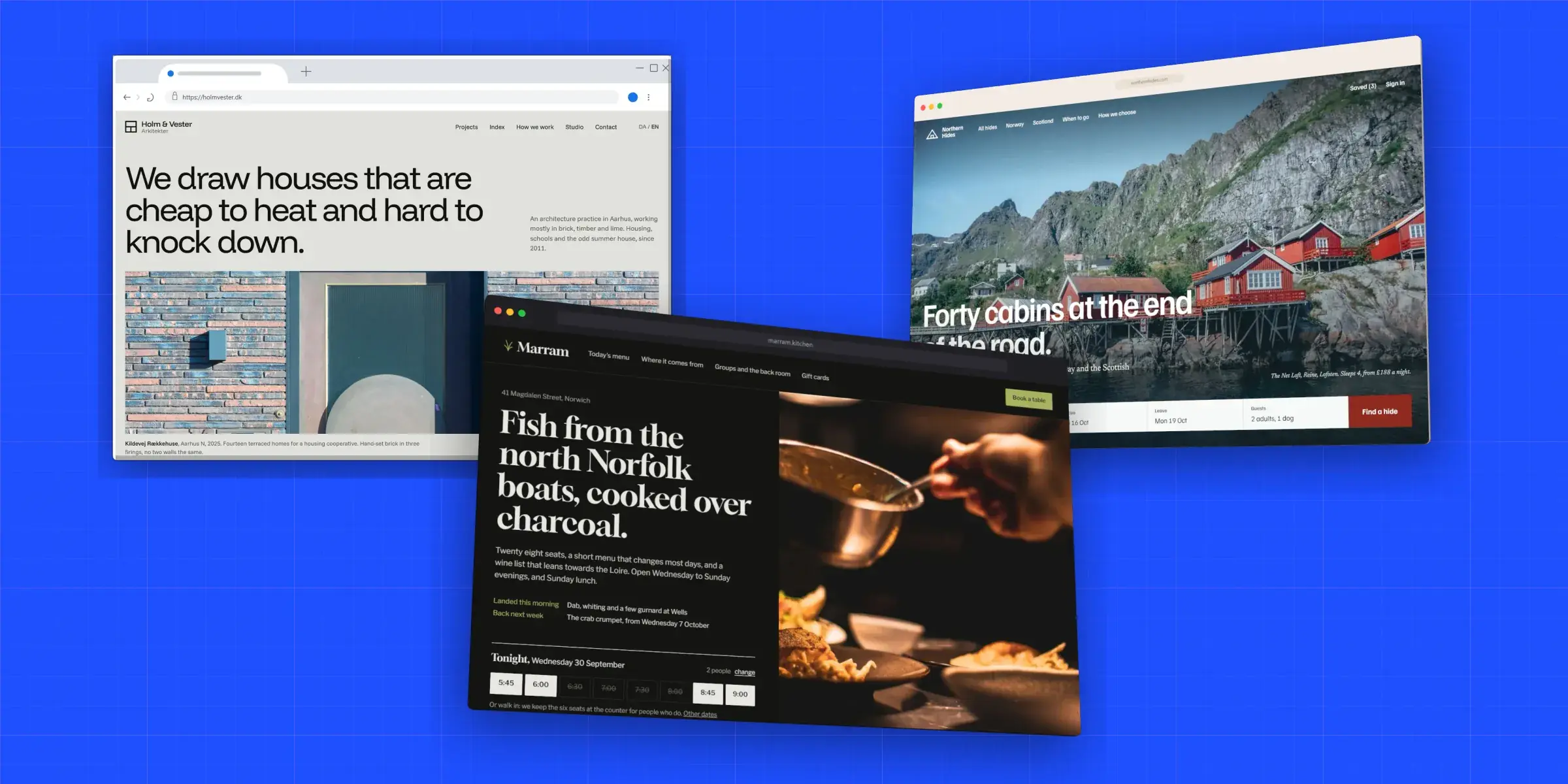
| Browser | Safari, Safari Light, Chrome, Chrome Dark, Firefox, Arc, Minimal Light, Minimal Dark |
For a browser frame, type the address you want shown in the address bar field. It's only text, so you can show your real domain on a screenshot taken from a staging server.
4. Flat or 3D
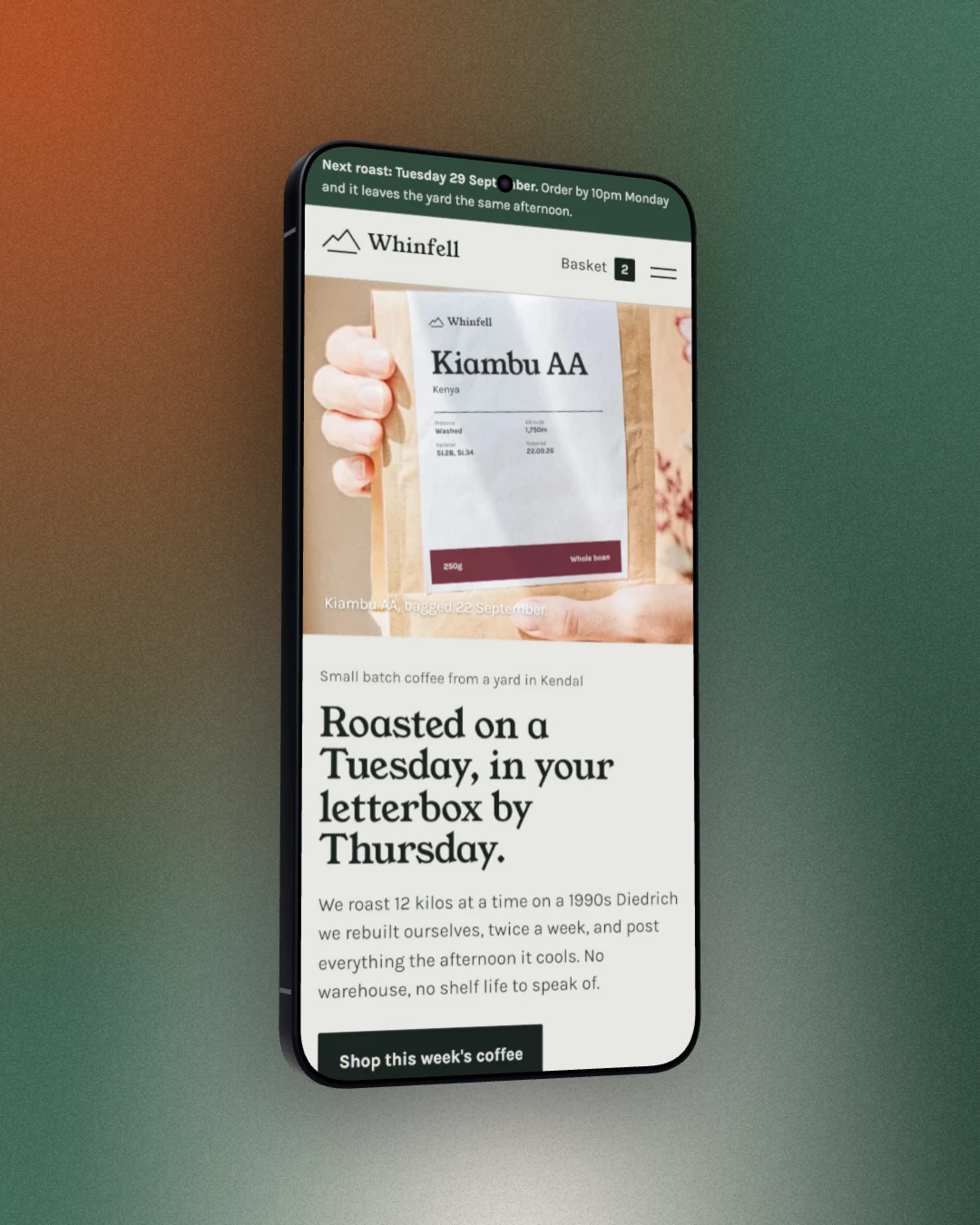
Under the tiles is a Flat / 3D switch. Flat is a straight-on drawing of the device and is free for every model. 3D is a real model you turn to any angle by dragging on the canvas; it is part of Pro, and on Free you can still click it to see your own shot in 3D before deciding.
5. Backdrop, size and export
Pick a backdrop in Backdrop ("Made for your shot" builds one from the screenshot's own colours) or None for a transparent PNG you can place on your own design. Choose the canvas size in Size, then Export: PNG, JPEG or WebP, at up to 2× on Free and 3× on Pro.
Getting the fit right
Most frames that look wrong are a shape problem, not a frame problem. A device screen has a fixed aspect ratio, so a screenshot of a different shape gets cropped or leaves gaps.
- Phone shots go in phones. Take the screenshot on a modern phone (around 19.5:9) and it drops into any current phone frame cleanly. An iPhone SE capture (16:9) fits the iPhone SE frame best.
- Desktop shots go in laptops, monitors and browsers. A 1440 × 900 window capture is a 16:10 shape, which suits a MacBook. A browser frame takes almost any wide screenshot, because the window can be any size.
- Crop out the status bar if it's messy. A low battery or a 3am clock is the first thing people notice. Clean it up before you frame.
- Capture websites from the address. When the studio captures a page itself, it can take it at the device screen's exact size, so nothing is cropped. When you add a phone, it fetches the phone layout of the same page.
- Use the full resolution. A screenshot scaled down in a chat app looks soft once it's framed and exported at 2×. Use the original file.
Framing a screenshot on a Mac
macOS has no built-in device frames. What it does have is a window shadow: press Shift-Command-4, then Space, and click a window, and the capture includes the window's drop shadow (hold Option as you click to leave the shadow out). Shift-Command-5 opens the same tools as a panel. That gives a neat app window, but not a phone or a laptop around it.
For a real device, you have two routes. Apple publishes product bezels for current iPhone, iPad and Mac models as Photoshop files and PNGs on its Design Resources page; you place the screenshot under the bezel layer and size it by hand. Or use a browser tool such as DudeShots, which does the sizing, rounded corners and screen cut-outs for you and works the same in Safari, Chrome or Firefox.
Framing a screenshot on Windows
Windows is in the same position. The Snipping Tool (Windows+Shift+S) captures a region, a window or the full screen, and can draw on it, but it adds no frames. Take the capture, then drop it into the studio. Nothing needs installing, and the device list is the same as on a Mac.
Android Studio and Google's device art
If you build Android apps, Android Studio can frame a screenshot it takes from a connected device or the emulator: take the screen capture, then in the screenshot editor choose Frame Screenshot and pick a device. Google notes that if the frame's device differs from the one you captured, the image is stretched to fit, and points to its online Device Art Generator instead. That page also asks you not to use its framed graphics in your Google Play screenshots or feature graphic.
For App Store screenshots the rules are looser, and a frame with a headline above it is the usual layout. The full process, with the 1290 × 2796 canvas, is in how to make App Store screenshots.
More than one device
One screenshot in one frame is free. Several devices on one canvas, such as a laptop with a phone in front, is part of Pro. A new account gets its first seven days of Pro without a card, so you can build the set and export it. The steps for a laptop, tablet and phone set are in the responsive mockup guide.
For a single device, go straight to the page for it: iPhone and Android, MacBook, browser window, or the iPad. Each opens the studio with that device ready, and pricing has the full Free and Pro list.